


Publish date:
Salesforce is among the most potent yet premium CRM platforms available today, and its real value lies in its seamless integration with other systems and environments. While implementation can be complex, businesses that invest in proper Salesforce CRM integration services gain better visibility, higher sales efficiency, and improved customer experiences. This is why organizations across industries rely on expert Salesforce integration services to unlock the platform’s full potential.
Salesforce-to-Salesforce (S2S) integration allows partner, subsidiary, or agency Salesforce organizations to connect directly. This connection helps eliminate data silos and removes the need for manual updates.
However, just knowing about the S2S connection does not answer important questions, such as:
-
How can we remove data silos and ensure our partners can access critical information in real time without manual updates?
-
Is there a native Salesforce solution to connect our separate organizations, or do we need to rely on complex API integrations and expensive middleware?
-
What are the limits and advantages of S2S integration?
This blog explains what S2S is, who should consider using it, and how it enables real-time data sharing between Salesforce organizations. It also provides step-by-step integration instructions and shares best practices to improve your strategy.
In our blog post, we’ll explain:
-
All the benefits of the Salesforce integration, even the surprising ones.
-
How to get ready for solution integration and the challenges you should know about.
-
Here’s how to set up integration between Salesforce accounts without coding.
-
Salesforce-to-Salesforce integration may not fully integrate multiple organizations. The REST API can effectively address this limitation.
What is Salesforce to Salesforce integration?
Salesforce-to-Salesforce is a feature that enables different Salesforce organizations to share data securely and in real time. This connection works both ways, allowing data to flow between the two organizations.
Salesforce-to-Salesforce creates a direct link between different Salesforce instances. Unlike traditional methods, which often require custom API development or third-party middleware, S2S simplifies integration.
Salesforce-to-Salesforce integration enables two different Salesforce systems, such as those used by Company A and Company B, to share specific information. It can include customer records, sales opportunities, or inventory data. All other information stays private.
-
Also Read: Salesforce Integration Guide 2026
Who May Need Salesforce to Salesforce Integration Setup?
-
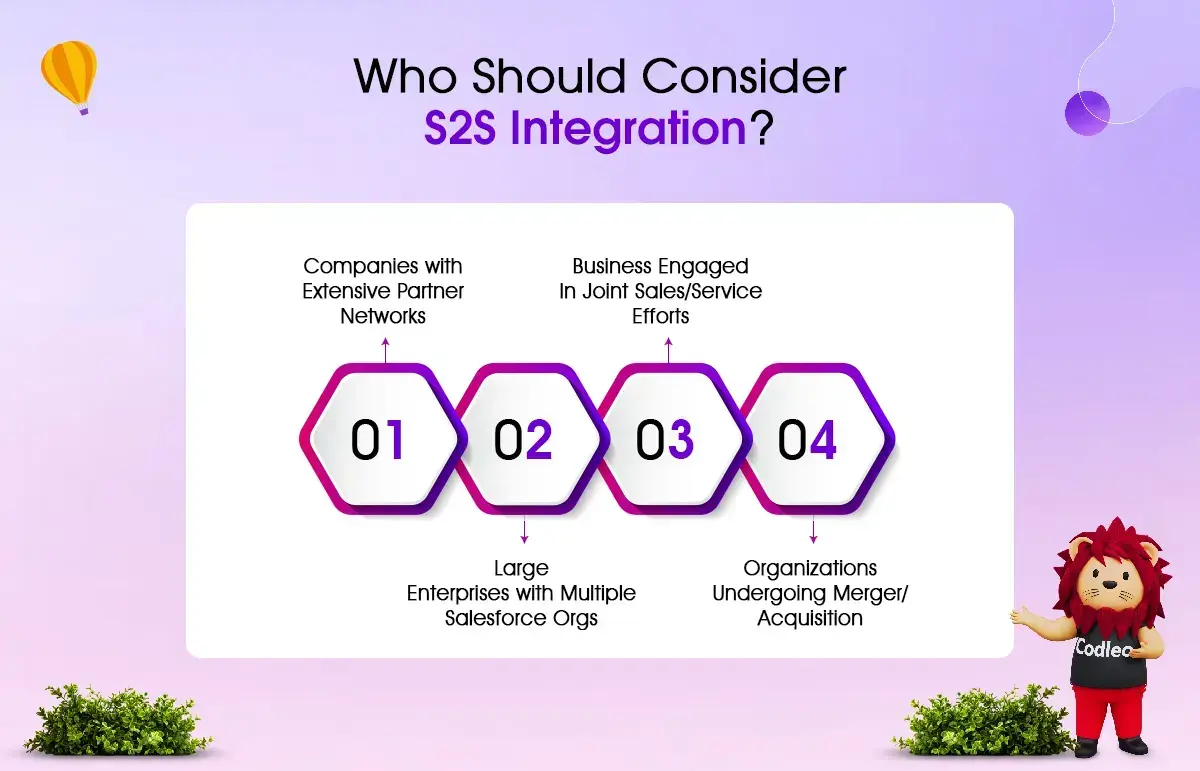
Businesses may need to connect multiple Salesforce accounts for various purposes within a single organization.
-
Companies that use Salesforce may need to share data with their partners, distributors, suppliers, or investors. They may also want to collaborate on this data across organizations.
-
Newly acquired organizations that want to run their Salesforce systems independently can still share essential records with the main office.
-
Companies that are merging or being acquired need to combine sales and marketing data from two Salesforce accounts.
Why do your businesses need Salesforce to Salesforce integration?
A Salesforce-to-Salesforce integration is essential for organizations that rely on critical business processes, as any downtime can harm customer service. This helpful feature allows Salesforce users to connect with other organizations and easily share records. Users can set up these sales data exchanges for either one-way or two-way communication.
If a new company uses Salesforce.com, it can connect with other companies to share and receive information about each other’s records. It includes leads, accounts, opportunities, and custom objects.
A Salesforce-to-Salesforce sync helps businesses save on licensing costs and manage permissions. It is beneficial for companies that outsource their sales operations to other firms but still need to monitor these activities in their Salesforce CRM.
Instead of buying extra Experience Cloud licenses and creating a Partner Community, you need to adjust the Salesforce integration settings. It will help you establish a collaborative sales environment across organizations.
Here are the reasons your business needs SFDC-to-SFDC integration.
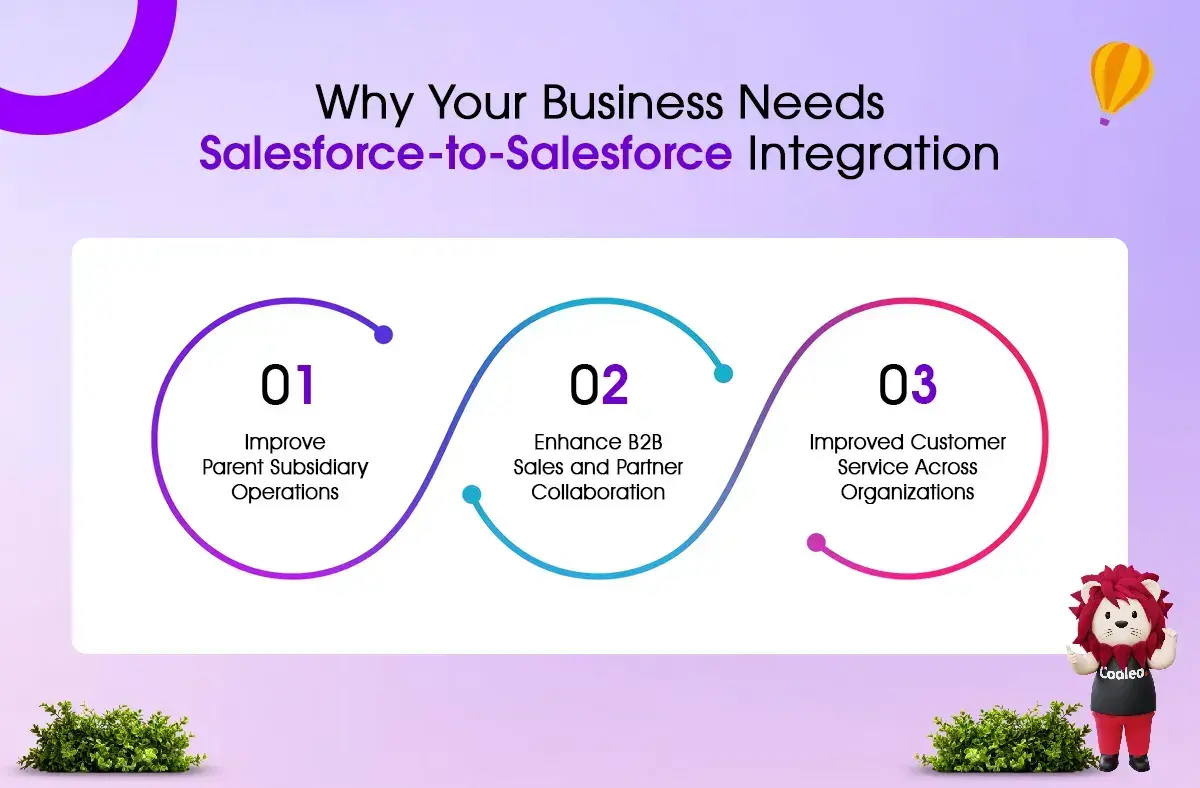
1. Optimize parent-subsidiary operational integration
Large companies with multiple subsidiaries face several challenges. They often experience delays in consolidated reporting, struggle with inconsistent customer data, and end up creating duplicate records.
Salesforce-to-Salesforce integration enables organizations to combine data, such as financials and customer records, while keeping each organization separate to comply with regional rules. It also allows data sharing between organizations without requiring additional licenses for shared users.
2. Improve B2B sales and strengthen collaboration with partners.
Your sales team spends significant time coordinating with partners via email and phone. They are busy updating duplicate records and finding the latest status of opportunities.
Salesforce-to-Salesforce integration helps sales teams from partner organizations, such as vendors and agencies, collaborate on shared accounts. They can share opportunities in real time. Each partner uses their own licenses, so you don’t have to provide permits for your organization.
A marketing agency shares campaign performance data with its client's Salesforce account.
3. Enhanced customer service throughout organizations.
Customer service delays occur when information is not shared effectively between vendors. It leads to duplicate service tickets and missing updates on partner solutions, which frustrates customers.
Salesforce-to-Salesforce helps teams collaborate on cases by enabling shared access, real-time status updates, and access to knowledge articles. Vendor teams can collaborate while keeping sensitive information, such as pricing, confidential.
For example, a hardware vendor and an MSP can collaborate on warranty claims and receive real-time updates.
How Salesforce CRM Helps to Close a Sale
Many companies worry about using a poor platform or several unconnected platforms. These situations can lead to problems such as poor communication, separate data sources, messy processes, a weak sales system, and poor customer service. But with Salesforce, these worries go away.
Salesforce offers many valuable features for organizations, including:
-
A central place to store customer data.
-
An easy way to track customer interactions.
-
A simple system to analyze current data.
-
A platform that makes it easy for different departments to work together.
Sharing data between Salesforce organizations is essential. It includes moving information from development to production. Sometimes, it is also necessary to share data between an internal Salesforce organization and an external one, such as those owned by vendors or partners.
Salesforce is a strong standalone solution that integrates easily with over 4,000 third-party products and its own tools. It offers affordable ways to integrate different Salesforce environments smoothly.
If your organization needs to connect multiple Salesforce accounts to share data, several options are available. You can use built-in Salesforce tools such as the Salesforce-to-Salesforce integration and the Salesforce Connect add-on, or platforms such as MuleSoft and Heroku. You can also consider using ETL tools.
Methods for Setting Up a Salesforce-to-Salesforce Integration
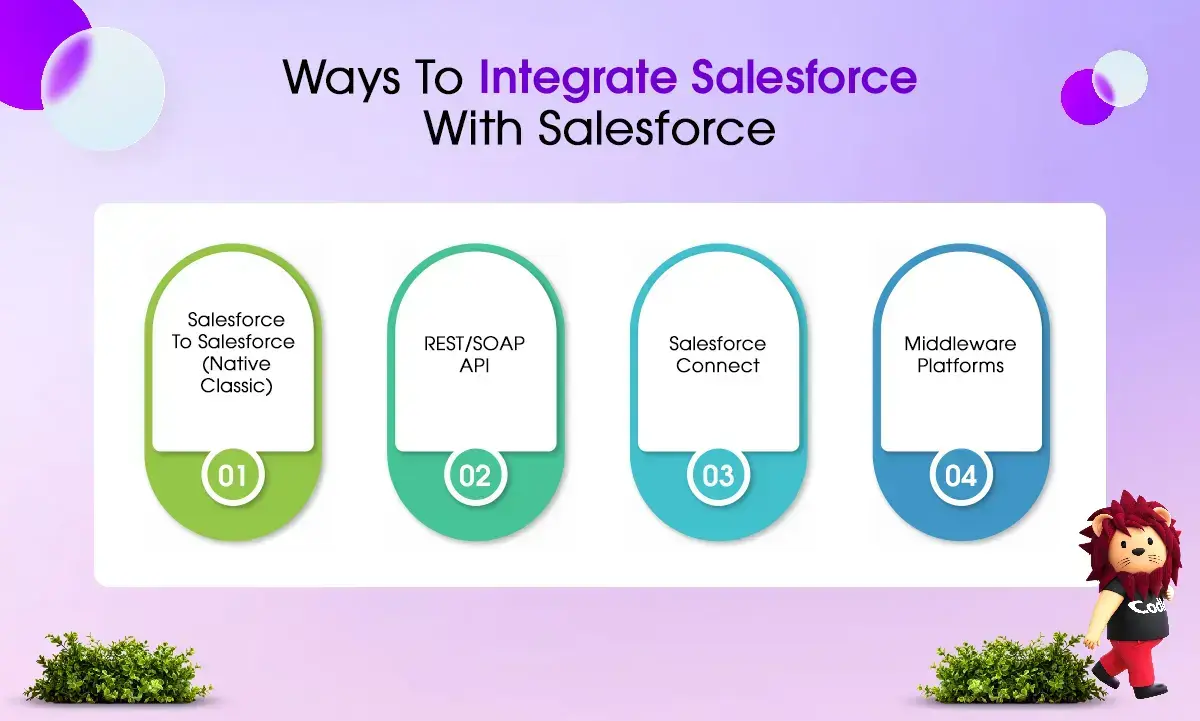
There are various ways for connecting two Salesforce orgs, including:
1. Salesforce to Salesforce (Standard feature)
Salesforce-to-Salesforce is a standard feature that enables two Salesforce organizations to share records securely. It allows bidirectional sharing and provides detailed control over which fields can be shared.
-
Pros: No cost, easy to set up, and can quickly create a secure connection between two organizations.
-
Cons: The API has low limits and does not allow data changes.
Best for: Using the native Salesforce-to-Salesforce integration feature is excellent for quick, easy sharing between Salesforce orgs, such as when partners collaborate.
2. REST/SOAP API
The REST/SOAP API method enables Salesforce to interact with other systems, including other Salesforce organizations.
-
Pros: You can sync data in real-time for any object or field. It is flexible for custom integrations and can handle large data volumes via the Bulk API.
-
Cons: You need to hire Salesforce developers who have coding skills. You also need help with maintaining and upgrading your API.
Best for: Controlling or integrating complex data transformations using advanced techniques.
3. Salesforce Connect
Salesforce Connect lets you easily integrate external data using a simple point-and-click method. It includes data from other Salesforce organizations.
-
Pros: You don’t need any coding. You can access live data without duplicating it, and there are no storage costs. It also requires minimal setup.
-
Cons: This applies only to external objects and issues with performance when handling large datasets.
Best for: S2S integration through Salesforce Connect allows read-only access to external objects (no replication).
4. Middleware Platforms:
Middleware platforms like Mulesoft help connect different Salesforce organizations. They provide a flexible way to share and manage data between these systems.
-
Pros: We provide pre-built connectors that make it easier to link systems. Our tools also help transform data and manage high volumes of daily transactions.
-
Cons: It can cost thousands of dollars, including fees for additional licenses and the services of Salesforce implementation experts.
Best for: Organizations need a central hub to manage high volumes of data across multiple systems.
Choosing the right Salesforce org-to-org implementation approach
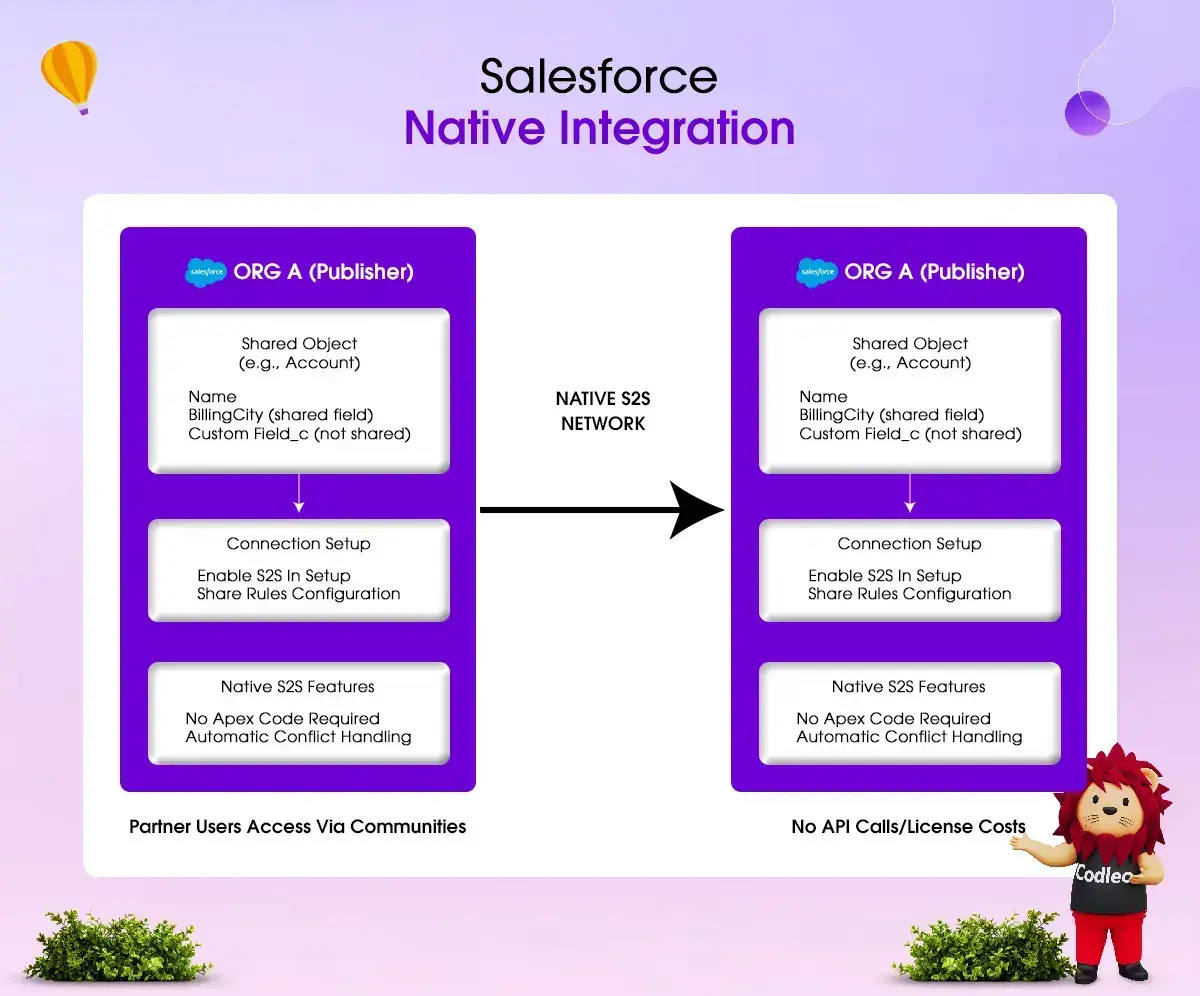
As we discussed, there are several ways to sync Salesforce with another Salesforce system. In this guide, we focus on two primary methods: the native Salesforce-to-Salesforce (S2S) approach and the REST API method. These represent two different strategies for syncing the systems.
-
Native S2S: An excellent choice for businesses that need a fast, free solution with minimal technical work. It works well for situations such as collaborating with partners or reporting to subsidiaries when both organizations use Salesforce. There is no need for complex data changes, and it offers real-time syncing.
-
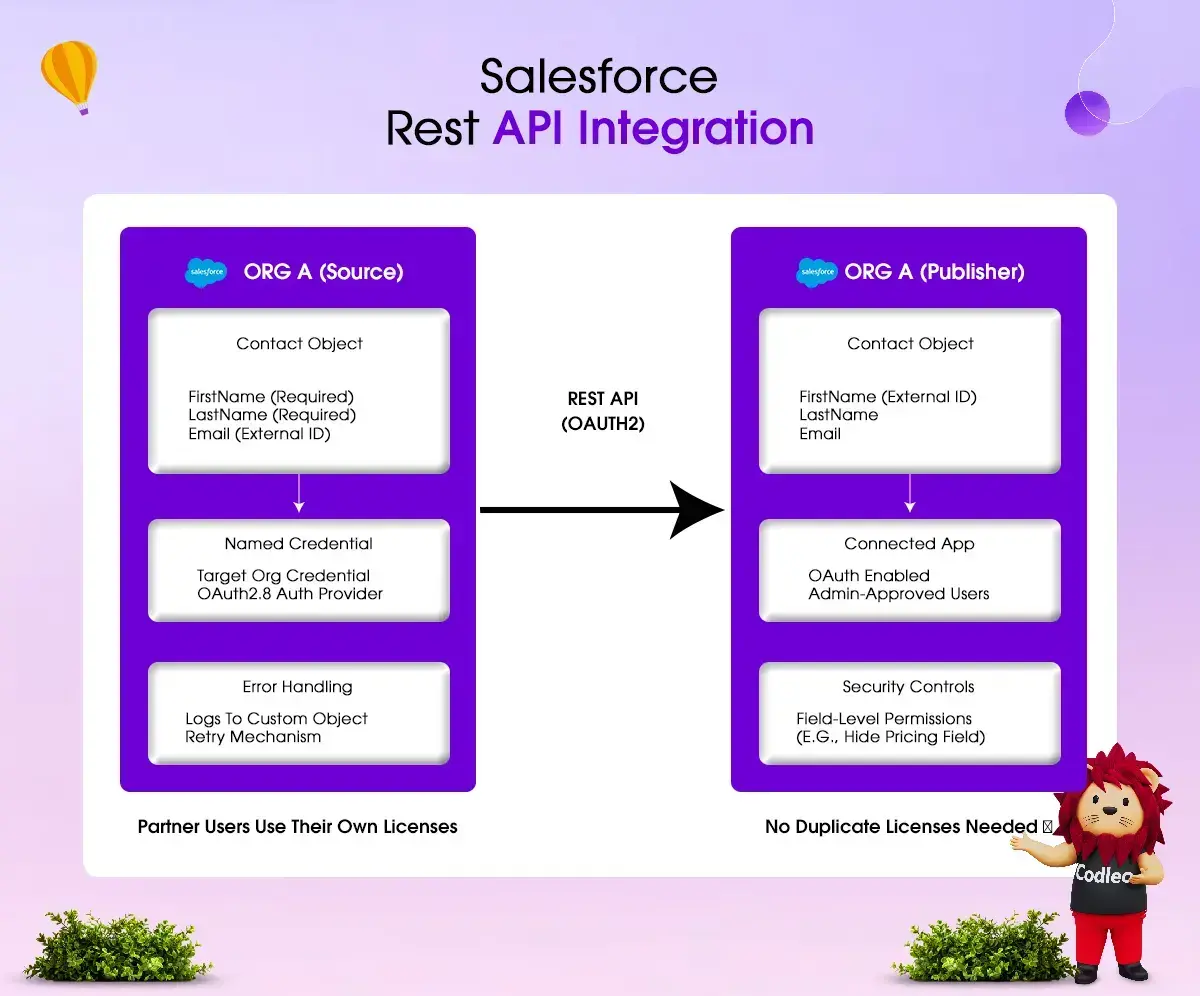
Rest API: This option is best for teams that need to customize and scale their work. It is also great for making specific changes, such as formatting dates, handling large volumes of data quickly, and connecting with other workflows.
Challenges Businesses May Face During Salesforce to Salesforce Integration
You can integrate multiple Salesforce instances, but this process has its challenges.
Poor Data Quality
Keeping customer data accurate is a significant challenge during system integration. When Salesforce environments connect, it is essential to ensure that the data transferred is correct, consistent, and up to date.
To address this issue, it's essential to establish clear data standards and implement rules to verify data accuracy and consistency. We also need systems that can quickly identify and handle duplicate entries, as these can harm client relationships and slow business growth.
Data Mapping Precision
Data mapping is a key part of integrating Salesforce between two organizations, but it can be quite challenging for businesses. When transferring data, it’s essential to match records and fields accurately. Doing this helps ensure that both systems work smoothly together.
It requires careful consideration because applications have different data fields. To address these challenges, it's essential to thoroughly review field types.
Preventing the Entry of Poor Quality Data
The term "bad data" refers to information that is outdated, not relevant, recorded incorrectly, or poorly organized. When integrating systems, it’s important to avoid using low-quality data.
No matter how your Salesforce database is set up, importing insufficient data can disrupt your project and harm your business operations.
Remove outdated Salesforce data and clean up the external system before syncing. Audit Salesforce records across both systems to identify and resolve major data issues. It will help create a unified platform for your team.
Data Synchronization
Data synchronization is a key part of connecting Salesforce systems, but it can be tricky. Different Salesforce editions store and replicate data differently, which can lead to issues. It's essential to manage this process carefully to avoid transferring duplicate records between different Salesforce accounts and organizations.
Using Salesforce tools, such as Duplicate Management, can help address data issues. You can also use free Salesforce data cleaning tools. Additionally, properly configuring access controls, such as field-level permissions, can improve data migration efficiency.
Clarifying Misconceptions About Salesforce Integration
Many people mistakenly think that real-time integration is the same as importing or exporting CRM data. It can lead to unnecessary problems. It’s essential to understand the difference between these two processes. If you’re unsure, consider consulting a Salesforce implementation partner like Codleo.
When importing or exporting data in Salesforce, you often need to run multiple batches. It means synchronization will not happen immediately. Therefore, don't expect real-time changes or instant data sharing.
Understanding the Built-in Tools of Salesforce
Before starting a Salesforce integration project, Salesforce customers need to understand Salesforce's built-in features. Ensure these features align with your project needs and can be used effectively. It will streamline your operations and reduce the need for complex coding, making Salesforce account integration easier.
Step-by-step guide for Salesforce to Salesforce integration (Native method)
Here are the steps to easily integrate Salesforce with Salesforce.
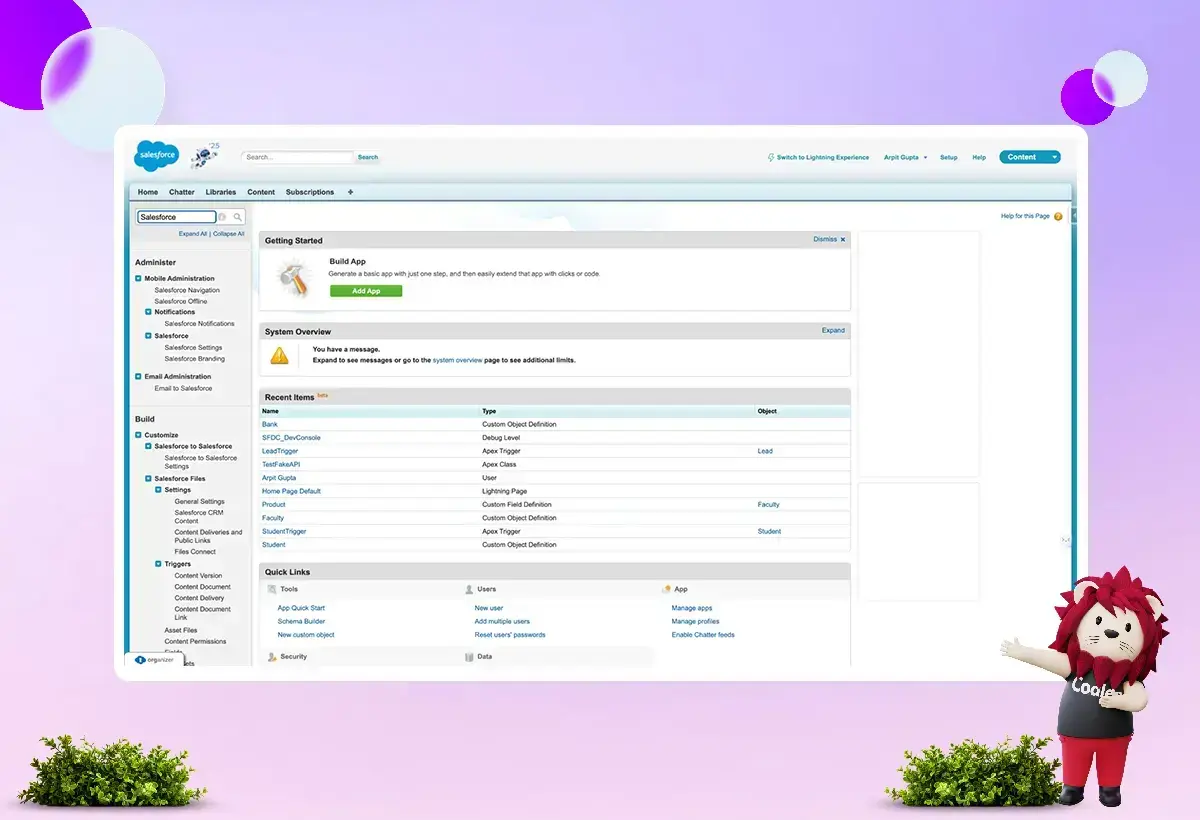
1. Set Up Configuration
-
Go to Salesforce Classic.
-
Click on Setup.
-
Search for "Salesforce to Salesforce."
-
Click on "Salesforce to Salesforce Settings."
-
(Note: If you are using Salesforce Lightning, click on your profile icon in the top right corner and choose “Switch to Classic.”)
-
2. Turn on Salesforce in Salesforce settings.
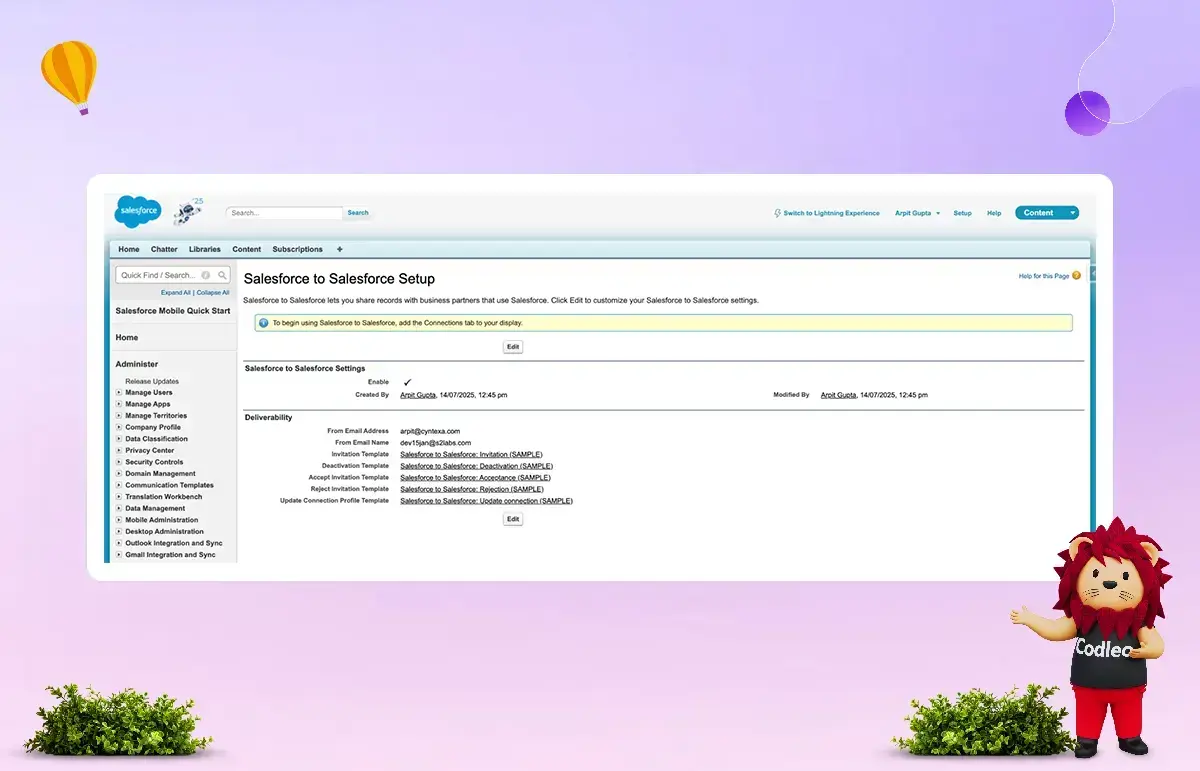
3. Do the same steps in your second organization before you start sharing data between them.
4. First, create a contact record in the first Org with a valid email address. We will use this email to send the invite.
5. After you create your Contact record, go to the Connections tab. Click New Connection, select Contact and Account, then click Save & Send Invite.
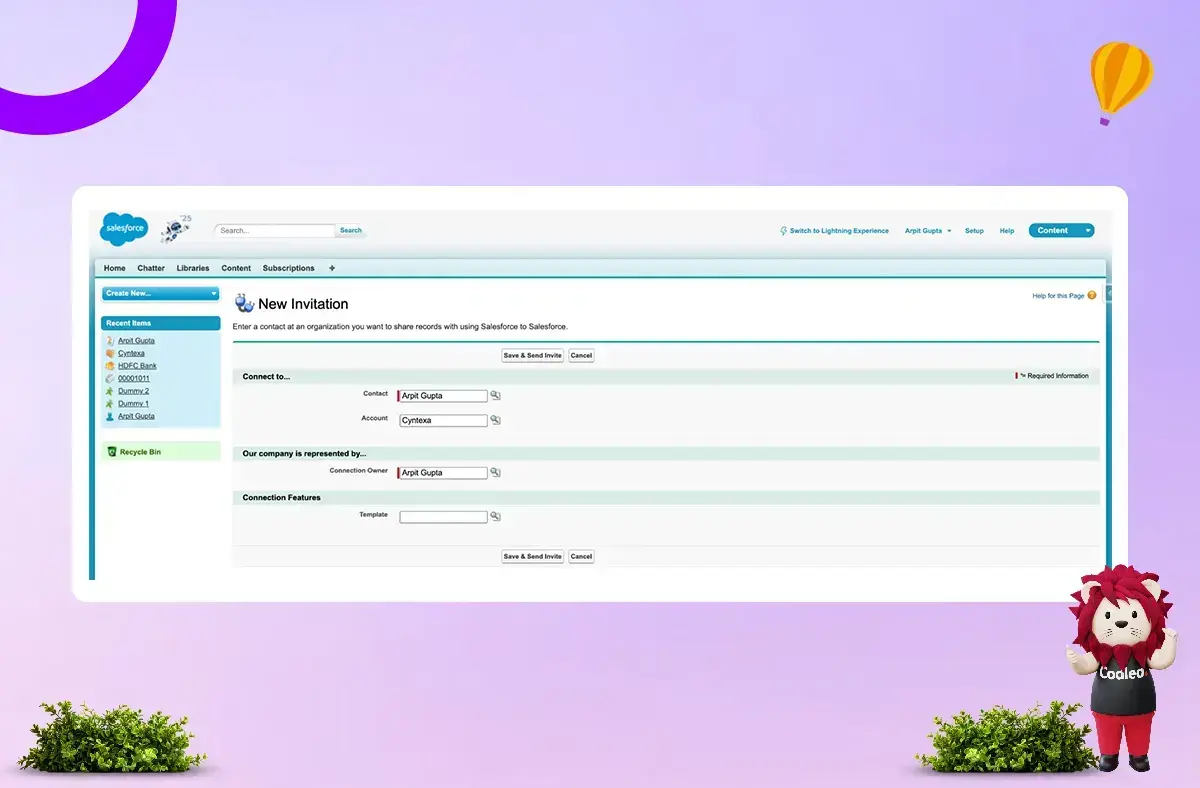
6. An email will be sent to that contact's email address. The second organization administrator needs to click the link in the email to set up the connection record.
"Invitation received in the second organization after clicking on the email."
7. Accept the Invitation.
8. You’ve successfully connected your two Salesforce accounts! The next step is to determine which data should be shared between them.
Publishing Objects and Fields between org
1. Click on your new connection record. Then go to the Published Objects Related List. Here, you can choose the objects that you want to send to the other organization.
Choose the objects you want to share. For example, we are sharing three custom objects: Bank, Branch, and Bank Account. A Bank can have many Branches, and a Branch can have many Bank Accounts.
2. First, choose the fields you want to send between organizations. Then, go to Published Objects and edit the object to add the fields.
3. Go to the second organization and access the connection. From there, look for subscribed objects. Then, map the object in the second organization.
4. Select the fields you want from the first organization. To do this, go to Subscribed Objects and edit the object where you want to map fields.
5. Establish two-way communication by repeating this process in both organizations.
Salesforce to Salesforce integration using REST API
How it works: Overview
-
Source Org: This is where the API call starts.
-
Target Org: This organization provides REST API endpoints using Named Credentials, an Auth Provider, and a Connected App.
-
Communication: To integrate securely, use Named Credentials and Auth Provider. It is the recommended method.
Before you start, make sure you have the following:
-
Admin access to both the source and target organizations.
-
API access turned on in both organizations.
-
Identify the data models in both organizations to ensure field mappings and object availability.
Step-by-step Salesforce to Salesforce Integration (Using REST API)
Here’s the second way to connect Salesforce to Salesforce using the REST API.
Step 1: Set Up a Connected App in the Target Organization
1. Go to Setup and click on App Manager, then select New Connected App.
2. Enable OAuth Settings.
3. Set the Callback URL to http://localhost.
4. Add the following OAuth Scopes: api, refresh_token, offline_access.
5. Save your work and write down the Consumer Key and Consumer Secret (think of these as the app's username and password).
6. Go to Manage, click on Edit Policies, and set Permitted Users to “Admin-approved users are pre-authorized.”
Step 2: Create an Auth Provider in Your Source Org
1. Go to Setup, then select Auth Providers, and click on New.
2. Select Salesforce as the Provider Type.
3. Enter the Consumer Key and Secret from your Target Org (from Step 1).
4. Set the Authorize and Token Endpoint URLs.
5. Save your changes and copy the Callback URL that is generated.
Step 3: Create a Named Credential in the Source Organization
1. Go to Setup and select Named Credentials.
2. Click on New Named Credential.
3. Enter the URL of the Target Organization instance.
4. Choose the OAuth 2.0 protocol and connect it to the Auth Provider from Step 2.
5. Save the Named Credential.
Step 4: Write Apex Code in Source Org
-
Use the Named Credential in Apex to call the Target Org REST API
-
Example:
public class SFDCToSFDCIntegrationService {
public static void sendContactToTarget(Contact contactRecord) {
String endpoint = ‘/services/data/v60.0/sobjects/Contact/’;
HttpRequest req = new HttpRequest();
req.setEndpoint(‘callout:TargetOrg_NamedCredential’ + endpoint);
req.setMethod(‘POST’);
req.setHeader(‘Content-Type’, ‘application/json’);
Map
‘FirstName’ => contactRecord.FirstName,
‘LastName’ => contactRecord.LastName,
‘Email’ => contactRecord.Email
};
req.setBody(JSON.serialize(body));
Http http = new Http();
HTTPResponse res = http.send(req);
if (res.getStatusCode() == 201) {
System.debug(‘Contact created successfully in target org.’);
} else {
System.debug(‘Failed: ‘ + res.getBody());
}
}
}
Step 5: Test the Integration
1. Create a test Contact in the Source Org.
2. Run the method from Apex.
3. Check that the record is created in the Target Org.
Step 6: Handling Errors and Keeping Logs
-
Create a custom object to log your requests and responses.
-
Add try-catch blocks in your Apex code to manage errors.
-
Use Platform Events or Change Data Capture (CDC) to handle background processes.
Step 7: Deployment & Security
1. Deploy the Connected App, Named Credentials, and Apex Code.
2. Assign the correct permissions to profiles or permission sets.
3. Check IP restrictions and token policies.
Bonus: Optional Enhancements
-
Use a Retry Queue with Batch or Queueable Apex.
-
Use Change Data Capture (CDC) or Platform Events for real-time synchronization.
-
Use Custom Metadata Types to map fields.
-
Add unit tests using HttpCalloutMock.
Common Uses of REST API for Integrating Salesforce with Salesforce.
Salesforce has a built-in REST API that enables other applications to work with Salesforce data efficiently. This web interface lets you access and modify data directly, outside the Salesforce user interface, making it easier to integrate with your own applications.
The REST API supports various HTTP request methods to communicate with specific Salesforce endpoints. It is beneficial for web or mobile apps that need to handle a small number of records rather than large datasets.
What is Salesforce REST API Integration?
Salesforce REST API Integration helps your application send and receive data with Salesforce or between different Salesforce accounts. This connection allows you to send data from your application to Salesforce and retrieve data from Salesforce. Currently, this service incurs no additional fees.
This integration provides three main benefits for Salesforce users. First, it lets them access and transfer their Salesforce data. Second, it allows users to send data from their application or Salesforce to a Salesforce instance. Lastly, it enables users to retrieve Salesforce data within their own application.
Why Salesforce to Salesforce Integration via REST API?
-
You need to connect different Salesforce instances smoothly.
-
You need a flexible, affordable solution for custom integrations, including one-way, two-way, or hybrid data sync. Currently, Salesforce provides 5 free Integration User Licenses, and each additional license costs $10.
-
You want to enhance the security of the Salesforce integration by implementing authentication. It will help you control what each integration can do with a specific set of credentials, adding an extra layer of protection beyond basic permissions.
-
This approach helps to increase integration capabilities over time without spending too much money.
-
A simple, convenient web service interface lets you easily interact with Salesforce via REST.
Using this option has some limitations and concerns:
1. The integration process is complex and requires time and resources for development and ongoing maintenance.
2. It is available in four editions: Enterprise, Unlimited, Developer, and Performance.
3. You can make a total of over 100,000 calls in 24 hours. It includes the number of licenses multiplied by the allowed calls per license type, plus any purchased API call add-ons.
4. Here are the API call limits for each license type per 24 hours:
-
Enterprise Edition: Salesforce - 1,000 calls, Salesforce Platform - 1,000 calls, Lightning Platform - One App - 200 calls.
-
Unlimited and Performance Editions: Salesforce - 5,000 calls, Salesforce Platform - 5,000 calls, Lightning Platform - One App - 200 calls.
5. REST API requests are limited to 120 requests per minute.
If your organization lacks sufficient developers but wants to improve control and flexibility in the integration process, hire developers from Codleo. We can help you set up REST API endpoints and build custom-connected apps for reliable, near-real-time data transfer.
Our Salesforce app developers can help you:
-
Create and set up API endpoints in Salesforce. It will allow external applications and other Salesforce accounts to communicate with Salesforce.
-
Create a clear map of the Salesforce data structure to ensure accurate, easy data exchange.
-
Set up authentication methods to secure access to Salesforce records.
-
Write code to handle errors and issues that may occur during data exchange. It will help to keep the data accurate and avoid interruptions in the flow of information.
-
Make the API requests efficient to integrate smoothly and stay within Salesforce’s API usage limits.
-
Test the Salesforce connection to identify any bugs or issues and ensure it works as expected.
-
Document the integration process and create a guide. This guide will help future developers better understand the integration.
We can help you create custom applications on the Salesforce platform to meet your organization’s needs better. We also assist in building and deploying custom applications on Salesforce’s AppExchange platform.
Checklist before going live after connecting Salesforce to Salesforce data:
1. Create a Connected App in the Target Org.
2. Set up the Auth Provider in the Source Org.
3. Configure the Named Credential securely.
4. Use the Named Credential for an Apex REST callout.
5. Add logging and error handling.
6. Review security policies.
7. Ensure all components are deployment-ready and have test coverage.
How to ensure your S2S integration is working correctly?
After you set up your Salesforce-to-Salesforce integration, it's crucial to thoroughly test it. Even a small mistake can lead to wrong data, security issues, or syncing problems. Here’s how to test your S2S integration to see if it works properly:
Test case 1:
Check that records sync correctly and in real time. To do this, follow these steps:
1. Create a test Account in Org A and see if it updates in Org B within 30-60 seconds. Make sure the standard fields (name, industry) match exactly.
2. For field updates, change the Account’s Industry field and verify that this change appears in Org B within 30-60 seconds. Also, confirm that no duplicate records are created.
Test case 2:
To prevent data leaks, perform security and compliance testing by following these steps:
-
Mark an opportunity as “Private” in Org A. Then, check if you can see it from Org B. The opportunity should not be visible in Org B. This step verifies that your access controls and sharing rules are functioning correctly.
-
Ensure that individual fields labeled as sensitive or restricted in Org A are not visible, changeable, or bypass your security settings when accessed from Org B, unless you have specifically allowed sharing.
After testing, make sure your operations and teams use the updated information effectively. If your team is not experienced in testing, Salesforce integration experts can assist.
How to Setup Salesforce Connect: Cross Org
Salesforce Connect lets you access external data in real time without copying it into your Salesforce organization. It provides seamless integration across different systems.
This tool connects external objects to data tables in other systems. It retrieves the data you need when you need it, keeping the information up to date. It is beneficial when you have a lot of data, need small amounts at a time, or want access to real-time information.
Salesforce Connect works well with the Lightning Platform. It gives you access to many Salesforce tools and can help connect two or more Salesforce organizations.
Salesforce Connect: Key Points and Limitations
Salesforce Connect works with both Salesforce Classic and Lightning Experience. It is available for an additional fee in the Enterprise, Performance, and Unlimited Editions.
This tool offers greater flexibility for integrating with third-party solutions and other Salesforce environments. You don’t need to import data into Salesforce to read, write, view, or report on data from external objects.
Salesforce Connect provides real-time search options for external data directly within Salesforce. It also includes features such as free-text search, record viewing, and list views.
Using Salesforce Connect costs $4,800 per month for a single integration. Each organization can set up to 100 external objects, which can be increased to 200 upon request.
You can have a maximum of 4 joins in a single query when combining external objects with other types. An OAuth token issued by an external system can be up to 4,000 characters long. For server-driven paging, the maximum page size is 2,000 rows.
Here’s how you can perform Salesforce integration using Salesforce Connector:
1. Open your organization and go to Setup. Then, select Integrations, choose External Data Source, and click on New External Data Source.
2. In the New External Data Source screen, follow these steps:
1. Name your External Data Source. For example, use “Salesforce Org 2.”
2. Select the type: Salesforce Connect: Cross Org.
3. Choose “Connect To: Production URL” for Developer and Production orgs.
4. Enter the URL: https://login.salesforce.com.
5. Enable Search and Writable External Objects.
6. Select Identify Type > Per User.
7. Choose Authentication Protocol > Password Authentication.
8. Enter the Administration Username. It is the username used for the target Org Integration.
9. Enter the Administration Password and Security Token.
10. Click “Save.”
11. Open the External Data Source you just created.
12. Click “Validate and Sync.”
13. Select the necessary objects, for example, “Account,” and click “Sync.”
14. Create a Tab for the External Object to access it.
If the Salesforce-to-Salesforce connection doesn’t provide the integration flexibility you need, and Salesforce Connect is too costly for all your connections, you can use Salesforce’s REST API. It allows you to connect and transfer data between different Salesforce orgs and other sources.
Mastering Data Integration Between Salesforce Accounts: Key Best Practices
Integrating Salesforce with Salesforce takes a lot of time and effort, especially when you're working with large datasets.
1. Define Integration Scope
Start by clearly defining what you want to integrate. Identify how data will be shared and which teams will be affected. Plan and communicate this information well. Remember that large integrations require careful cleaning and the removal of duplicate data, which can take a long time. Set a budget right from the start to manage the project effectively.
2. Prepare Data
Focus on where your data is going, not where it comes from. Clean and align your data models before syncing to ensure both Salesforce organizations have accurate data. This step helps users get the most value from their data.
3. Create an Integration Strategy
To avoid ineffective integrations, create a clear integration plan. This plan should cover how data is organized and structured in both organizations. Decide on data distribution, how to check data accuracy, and who is responsible for each task. Your integration plan must include steps for validating data and resolving issues, and ensure it provides ongoing value to business users.
4. Develop a Contingency Plan
Make a plan to handle possible problems. Typical issues may include disorganized data, formatting mistakes, or conflicts with validation rules. Keep a record of errors you encounter so you can refer to them later. It will help you continue your integration plan and address any remaining data issues afterward.
Conclusion
Salesforce-to-Salesforce integration enables different Salesforce organizations to easily share critical real-time data. It is invaluable when companies collaborate on projects or when different branches use separate Salesforce systems.
It improves efficiency and accuracy by sharing data directly between Salesforce accounts. It reduces the mistakes that often occur with manual data entry or import/export processes. It also allows for real-time collaboration, giving everyone access to the latest information.
Salesforce integration helps businesses keep running smoothly by allowing continuous data sharing between Salesforce accounts. It reduces the impact of possible system issues. Overall, integrating Salesforce with itself is a strong tool for sharing records, improving teamwork, and increasing efficiency. It leads to better sales productivity.
If you need help with complex Salesforce integrations that require extensive setup, book a free Salesforce consulting call. Together, we will find the best integration solution.
Connecting information between different Salesforce accounts gives you a clear view of real-time data. It improves decision-making and reduces manual work.
The success of your Salesforce integration depends on your business needs. Integrating Salesforce accounts requires skills in data mapping, security, and data synchronization monitoring. Our Salesforce integration services can help connect your accounts, streamline your processes, and ensure your data flows reliably in real time.
At Codleo, we first assess your needs to determine whether a native or middleware solution is needed. Then we set up a robust server-to-server connection with error handling. We also provide ongoing support to keep your synchronization running smoothly.
Our certified experts offer Salesforce integration support in the USA, India, and UAE, from native Salesforce-to-Salesforce setups to advanced API and middleware integrations.
Schedule a free consultation now to create an integration strategy that fits your business.
 0
0
About the Author



 603 D-Mall Netaji Subhash Place, Delhi 110034 IND


