


Publish date:
Quick answer: To integrate WhatsApp with Salesforce, connect a WhatsApp Business Account (WABA) to your Salesforce org using one of three methods: the native enhanced WhatsApp channel in Salesforce Messaging, a certified AppExchange app with a Business Solution Provider, or a custom build on the WhatsApp Business Platform API. All three need a verified Meta business account, a registered number, and approved message templates.
Your customers already use WhatsApp every day. Over 2 billion people use it worldwide, and in markets like the UK and UAE, it is often the first place customers go to reach a business. In the US, it is increasingly how companies talk to international buyers, cross-border clients, and multilingual customers.
The challenge is that most WhatsApp conversations still sit on an agent's phone or in a separate inbox. Your sales, service, and marketing teams can't see them, and the customer record in Salesforce stays incomplete.
A WhatsApp Salesforce integration closes that gap. Every chat is logged on the right lead, contact, or case. Agents reply from inside Salesforce, and Flows automatically send approved template messages, such as order updates, appointment reminders, and follow-ups.
In this guide, you'll learn:
-
The three ways to connect WhatsApp to Salesforce, and which one fits your team
-
What you need before you start
-
A step-by-step native setup and a custom API approach
-
Costs, compliance rules for the US, UK, and UAE, and mistakes to avoid
Want expert help instead? Codleo's Salesforce integration services team can scope, build, and support your WhatsApp integration from start to finish.
Key Takeaways
-
Three integration methods: native Salesforce Messaging, a partner or AppExchange app, or a custom WhatsApp Business API build.
-
Native setup is best for service teams already on Service Cloud with Messaging licenses.
-
Start the WABA from inside Salesforce. For the native channel, set up your WhatsApp Business Account through Salesforce's channel setup flow, not separately in Meta.
-
Plan for template approval. Business-initiated messages must use Meta-approved templates, so submit them early.
-
Consent is mandatory. Collect and store opt-in on the Salesforce record before messaging customers first.
-
Complex needs call for a partner. Custom objects, multi-system flows, or high volume are best handled with an experienced Salesforce integration consulting partner.
What Is WhatsApp Salesforce Integration?
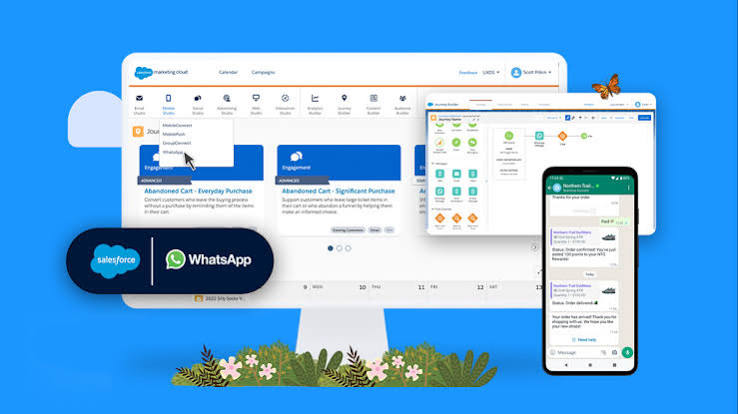
WhatsApp Salesforce integration connects your WhatsApp Business Account to your Salesforce org, so your team can send and receive WhatsApp messages directly inside Salesforce. Every conversation is saved on the matching lead, contact, account, or case, giving sales, service, and marketing teams one shared view of the customer.
Without this connection, WhatsApp chats stay locked on individual phones or in a separate inbox. A sales rep won't know that support spoke to the same customer yesterday, and managers can't report on response times or conversation volume. Once you connect WhatsApp to Salesforce, every team sees the full conversation history next to the customer record. You can also use Salesforce data to trigger automated WhatsApp messages, such as order confirmations, appointment reminders, and post-demo follow-ups.
Can WhatsApp Be Integrated with Salesforce?
Yes. Salesforce supports WhatsApp natively through its enhanced WhatsApp channel in Salesforce Messaging. You can also connect WhatsApp to Salesforce using a certified AppExchange app or a custom build on Meta's WhatsApp Business Platform API. The right option depends on your Salesforce cloud, licenses, and how custom your workflows need to be.
How Does WhatsApp Salesforce Integration Work?
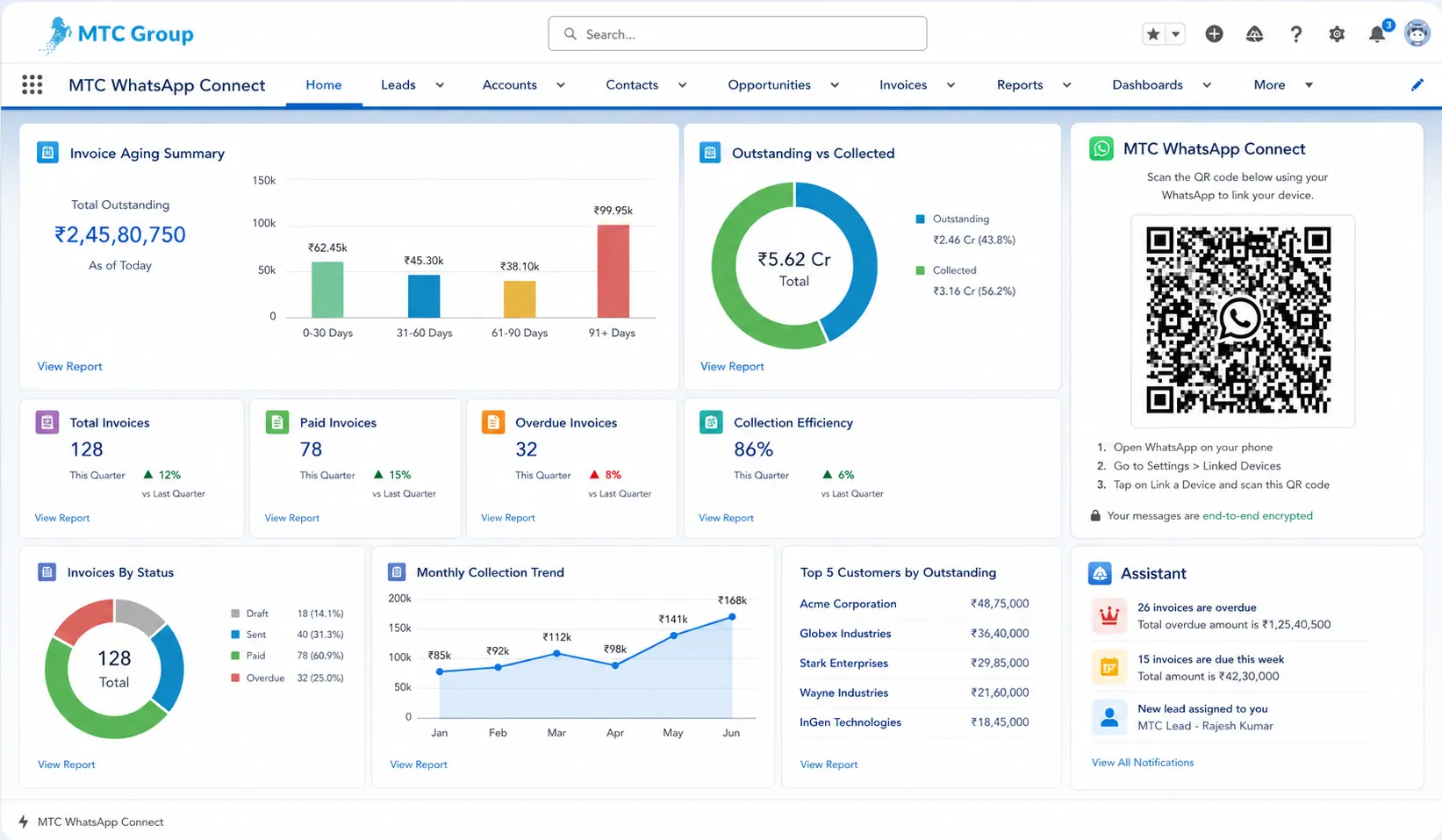
Every WhatsApp Salesforce integration, whether native, app-based, or custom, runs on the same four layers.
| Layer | What It Is | Role in the Integration |
|---|---|---|
| WhatsApp Business Platform | Meta's official messaging platform for businesses | Delivers messages between your customers and your business number |
| WhatsApp Business Account (WABA) | Your verified business profile and phone number on Meta | Stores your number, display name, and message templates |
| Connector | Salesforce's native Messaging channel, an AppExchange app, or custom API code | Moves messages in both directions and applies your business rules |
| Salesforce Org | Your CRM data, routing rules, and automation | Stores conversations, assigns them to agents, and triggers automated messages |
How a WhatsApp Message Flows into Salesforce
-
A customer sends a WhatsApp message to your business number.
-
Meta delivers the message to your connected Salesforce channel or API endpoint.
-
Salesforce opens a messaging session and links it to the customer's existing record, or creates a new one if the sender is unknown.
-
Omni-Channel routing assigns the conversation to the right agent or queue.
-
The agent replies from Salesforce, and the message travels back through Meta to the customer's phone.
-
The complete conversation stays on the customer record so sales, service, and marketing teams can see it.
Customer-Initiated vs. Business-Initiated WhatsApp Messages
WhatsApp treats conversations differently depending on who sends the first message. This rule affects your setup, your automation, and your messaging costs.
| Message Type | Who Starts It | What You Can Send | Common Use Cases |
|---|---|---|---|
| Customer-initiated | The customer | Free-form replies within the 24-hour customer service window | Support questions, sales inquiries, product questions |
| Business-initiated | Your business | Meta-approved message templates only | Order updates, appointment reminders, payment alerts, promotions |
What Is the WhatsApp 24-Hour Customer Service Window?
The 24-hour customer service window opens each time a customer messages your business. During that window, your agents can send free-form replies. Once 24 hours pass without a new customer message, you can only reach that customer with a pre-approved template message. Plan your templates early, because Meta must approve each one before you can use it.
WhatsApp vs. SMS in Salesforce: Which Should US Businesses Use?
In the US, many businesses still rely on SMS for customer messaging. WhatsApp is the better choice when you serve international customers, multilingual audiences, or clients in regions like Latin America, the UK, the Middle East, and India, where WhatsApp is the default messaging app. It also supports rich media, read receipts, and encrypted conversations. Many US companies run both channels in Salesforce, using SMS for domestic customers and WhatsApp for global ones.
| Factor | SMS | |
|---|---|---|
| Best audience | International and multilingual customers | Domestic US customers |
| Rich media | Images, documents, voice notes, buttons | Limited (MMS) |
| Read receipts | Yes | No |
| Encryption | End-to-end between users | Not encrypted |
| Opt-in rules | Required by WhatsApp policy | Required under TCPA |
| Cost model | Per template message, by category and country | Per message, by carrier and provider |
What Can You Do After Integrating WhatsApp with Salesforce?
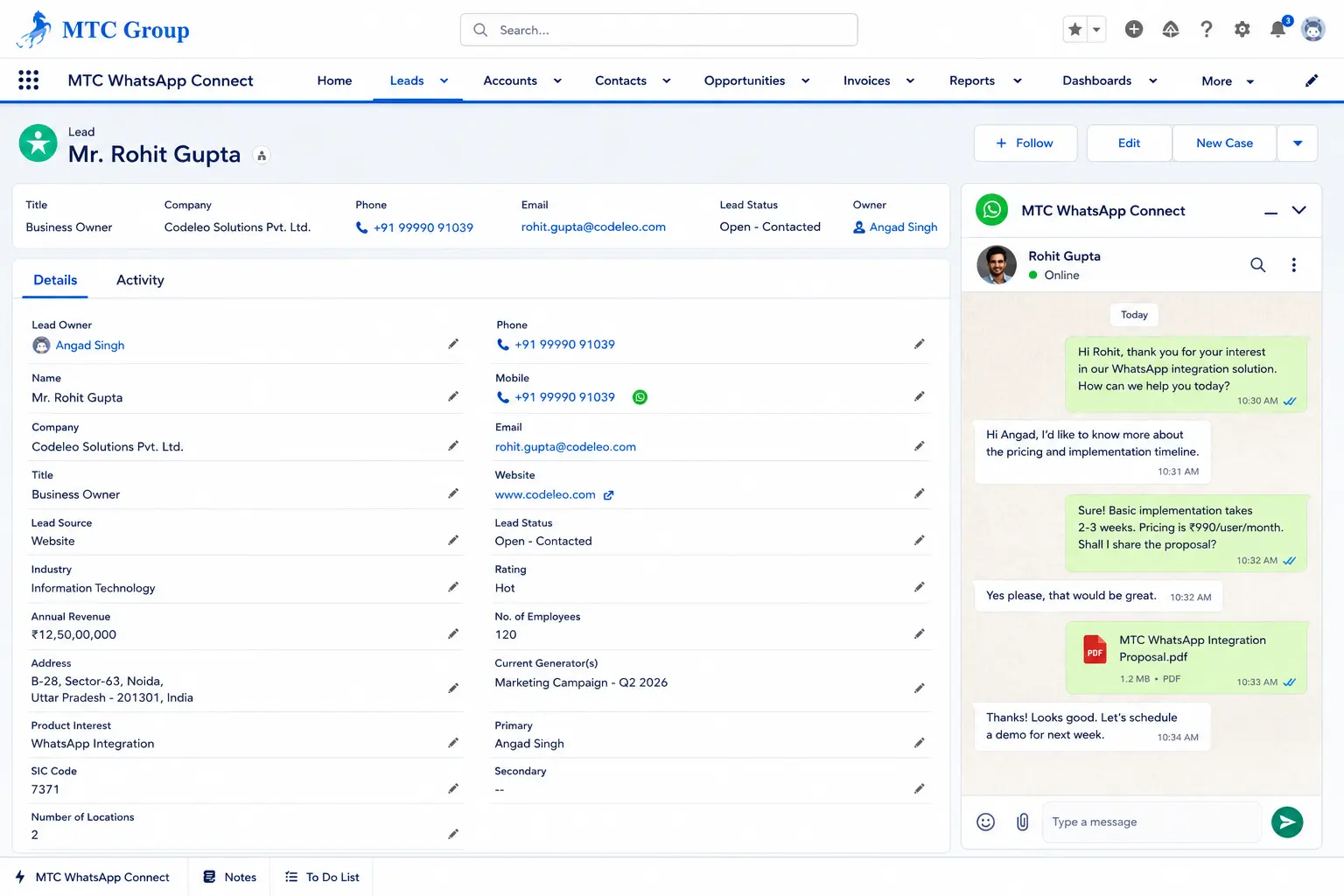
Once WhatsApp is connected to Salesforce, your teams can manage every customer conversation from one place. Here are the core capabilities businesses use most.
| Capability | Who Benefits | Example |
|---|---|---|
| Two-way WhatsApp chat inside Salesforce | Sales and service reps | A rep answers a pricing question directly from the Opportunity record |
| Automatic conversation logging | Managers and cross-functional teams | Every chat appears on the related Lead, Contact, Account, or Case |
| Automated template messages | Operations and marketing teams | A Flow sends an appointment reminder 24 hours before a scheduled visit |
| Smart routing and transfers | Support leaders | Chats route by language, product line, or priority to the right queue |
| Rich media support | Service agents | Customers share photos, invoices, or documents to resolve issues faster |
| Messaging reports and dashboards | Leadership | Compare response times, chat volume, and resolution rates by team |
| Multiple WhatsApp numbers | Multi-region businesses | Separate numbers for US, UK, and UAE teams, each with its own routing |
| AI-assisted conversations | Service and sales teams | Agentforce handles routine questions and hands complex ones to agents |
Key Benefits of Connecting WhatsApp to Salesforce
-
Faster response times: Agents reply from one console instead of switching between apps and devices.
-
Complete customer history: Every WhatsApp conversation is stored on the CRM record, so no context is lost when a chat changes hands.
-
Higher engagement: WhatsApp messages typically see stronger open and response rates than email.
-
Better compliance control: Conversations stay inside Salesforce, with access managed through profiles and permission sets instead of personal phones.
-
Global reach: Serve customers in the US, UK, UAE, and beyond on the messaging app they already prefer.
For a deeper look at the business impact, read our guide to the benefits of WhatsApp Salesforce integration. If your team runs campaigns, see how WhatsApp integration with Salesforce Marketing Cloud works.
Does WhatsApp Integration Work with Every Salesforce Edition and Cloud?
It depends on the integration method you choose. Salesforce's native WhatsApp channel is built on Salesforce Messaging, which is mainly used with Service Cloud. AppExchange apps and custom WhatsApp Business API builds can extend WhatsApp to Sales Cloud, Marketing Cloud, Experience Cloud, and custom objects.
| Salesforce Product | Native WhatsApp Channel | AppExchange App | Custom API Build |
|---|---|---|---|
| Service Cloud | Yes, with Messaging licenses | Yes | Yes |
| Sales Cloud | Limited | Yes | Yes |
| Marketing Cloud | Through Marketing Cloud's own WhatsApp messaging | Yes, depending on the app | Yes |
| Experience Cloud | Limited | Yes, depending on the app | Yes |
| Custom objects | No | Depends on the app | Yes |
Can You Use WhatsApp with Salesforce Sales Cloud?
Yes. While the native WhatsApp channel is designed around Service Cloud, sales teams can use WhatsApp on leads and opportunities through a certified AppExchange app or a custom API integration. This lets reps follow up on inquiries, send meeting reminders, and nudge stalled deals without leaving Salesforce.
Do You Need Additional Salesforce Licenses for WhatsApp?
For the native route, your org needs licenses that include Salesforce Messaging, such as Digital Engagement or the relevant Service Cloud messaging add-on. Partner apps usually require their own subscription, and custom builds may need additional platform or integration licenses. Licensing names and bundles change often, so confirm your current entitlements before you buy anything new.
Not sure what your org already includes? A quick Salesforce integration consulting review from Codleo can confirm your licenses and recommend the most cost-effective path.
What You Need Before Integrating WhatsApp with Salesforce
Getting the right prerequisites in place prevents most project delays. Meta business verification and template approval usually take the longest, so start those first.
| Area | Requirement | Why It Matters |
|---|---|---|
| Salesforce | System Administrator access | Required to enable Messaging and configure channels |
| Salesforce | Licenses that include Salesforce Messaging (native route) | The native WhatsApp channel runs on Salesforce Messaging |
| Salesforce | Omni-Channel enabled, with at least one queue | Incoming WhatsApp chats need a routing destination |
| Salesforce | A sandbox for testing (recommended) | Lets you test routing and automation before going live |
| Meta | Meta Business Account (Business Manager) | The parent account that owns your WhatsApp assets |
| Meta | WhatsApp Business Account (WABA) | Holds your business number, profile, and message templates |
| Meta | Business verification | Unlocks higher messaging limits and builds customer trust |
| Phone number | A number that can receive an SMS or voice verification code | Used to register your WhatsApp Business number |
| Phone number | A number not active on another WhatsApp app or account | Numbers already in use must be deleted or migrated first |
| Content | Draft message templates | Business-initiated messages require Meta approval |
| Compliance | A documented customer opt-in process | WhatsApp policy requires consent before you message customers first |
| Team | A named owner for setup, agents, and reporting | Keeps the project moving and accountable |
How Long Does WhatsApp Salesforce Integration Take?
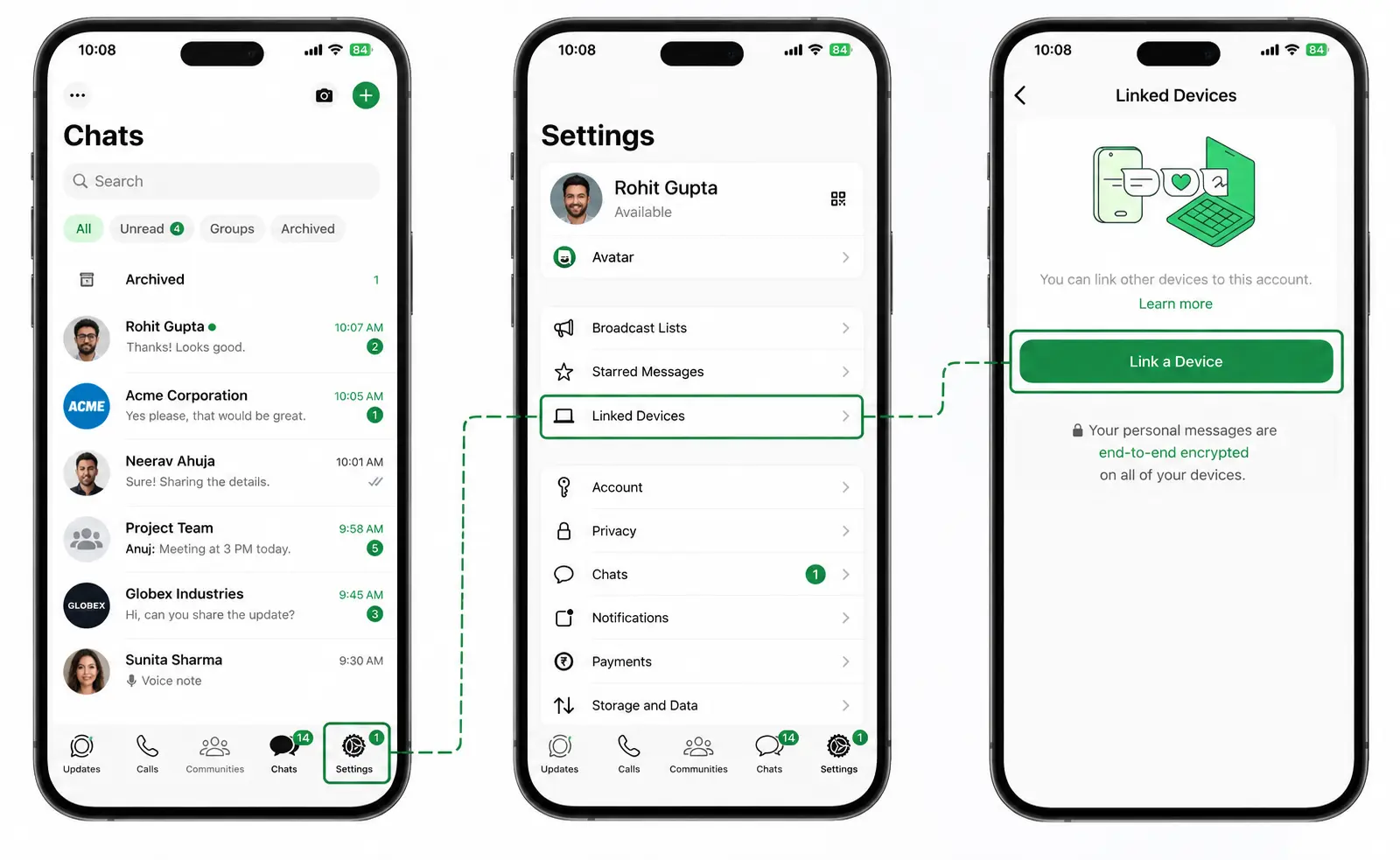
Timelines vary by method and readiness. As a general guide:
| Integration Method | Typical Timeline |
|---|---|
| Native Salesforce Messaging channel | 1 to 3 weeks |
| AppExchange or partner app | 2 to 4 weeks |
| Custom WhatsApp Business API build | 6 to 12 weeks or more |
Meta business verification and template approvals can add extra time, especially if documents need to be resubmitted.
WhatsApp Salesforce Integration Pre-Launch Checklist
-
Confirm your Salesforce editions and messaging licenses.
-
Choose the WhatsApp business number and display name customers will see.
-
Complete Meta business verification.
-
Decide which team responds first: sales, service, or both.
-
Draft your first 3 to 5 templates, such as order updates, appointment reminders, and follow-ups.
-
Document how customers opt in to WhatsApp messages and where consent is stored in Salesforce.
-
Assign numbers by region or language if you serve the US, UK, UAE, or other markets.
-
Standardize phone numbers on your records in international E.164 format (for example, +14155552671).
-
Define success metrics, such as first response time and resolution rate.
Important: Set Up Your WABA from Inside Salesforce
For the native route, create or connect your WhatsApp Business Account through the channel setup flow inside Salesforce. A WABA created separately in Meta Business Manager may not attach to a Salesforce native channel, which can force you to restart the setup.
If your license position or Meta setup is unclear, a short Salesforce integration consulting audit from Codleo can confirm what you already have and what you still need before you spend on new tools.
3 Ways to Integrate WhatsApp with Salesforce
No single best way exists to connect WhatsApp to Salesforce. The right method depends on which Salesforce clouds you use, how custom your workflows are, and how much technical ownership your team can take on.
| Factor | Native Salesforce Messaging | AppExchange or Partner App | Custom WhatsApp Business API Build |
|---|---|---|---|
| Best for | Service teams already using Service Cloud | Sales and marketing teams that need a faster rollout | Unique workflows, custom objects, and multi-system setups |
| How it connects | Enhanced WhatsApp channel in Messaging Settings | Managed package plus a Business Solution Provider (BSP) | Meta's WhatsApp Business Platform (Cloud API) with Apex or middleware |
| Setup effort | Low to medium | Low to medium | High |
| Customization | Limited to what Salesforce supports | Moderate, depending on the app | Full control |
| Works beyond Service Cloud | Limited | Usually yes | Yes |
| Ongoing maintenance | Maintained by Salesforce | Maintained by the app vendor | Owned by your team or partner |
| Cost model | Salesforce licenses plus Meta message fees | App subscription plus BSP and Meta fees | Development cost plus Meta message fees |
| Main risk | Less flexible for sales or custom use cases | Vendor lock-in and per-user pricing | Higher build and maintenance cost |
Method 1: Native Salesforce Messaging for WhatsApp
Salesforce's native option uses the enhanced WhatsApp channel inside Salesforce Messaging. You connect your WhatsApp Business Account directly from Setup, and conversations route to agents through Omni-Channel in the Service Console.
Choose this method if:
-
Your team already uses Service Cloud with Messaging licenses
-
Your main goal is customer support on WhatsApp
-
You want a Salesforce-supported setup with minimal custom code
Method 2: AppExchange Apps and Business Solution Providers
AppExchange apps connect WhatsApp to Salesforce through a certified Business Solution Provider (BSP), an official Meta partner that hosts WhatsApp Business API access. These apps typically add WhatsApp to leads, contacts, opportunities, and campaigns, along with features like bulk messaging and chat widgets.
Choose this method if:
-
Your sales or marketing team needs WhatsApp on leads and opportunities
-
You want to go live quickly without heavy development
-
You need features the native channel doesn't offer, such as bulk campaigns
Before you buy, check:
-
Salesforce security review status on AppExchange
-
Pricing model (per user, per message, or per number)
-
Data residency and where messages are stored
-
Support coverage in your time zones
Method 3: Custom Integration with the WhatsApp Business API
A custom build connects Salesforce directly to Meta's WhatsApp Business Platform (Cloud API) using Apex, webhooks, and optionally middleware like MuleSoft. It gives you full control over data models, automation, and how WhatsApp works across multiple systems.
Choose this method if:
-
Chats must create or update records across several systems, such as Salesforce and an ERP
-
You need WhatsApp on custom objects or industry-specific processes
-
You handle very high message volumes or need strict security controls
Which WhatsApp Salesforce Integration Method Is Right for You?
| If Your Situation Is... | Recommended Method |
|---|---|
| Support team on Service Cloud that wants to go live quickly | Native Salesforce Messaging |
| Sales-led team that wants WhatsApp on leads and opportunities | AppExchange or partner app |
| Marketing team running WhatsApp campaigns | Marketing Cloud WhatsApp messaging or a partner app |
| Multiple systems, custom objects, or very high volume | Custom WhatsApp Business API build |
| Several teams with different needs, or unsure where to start | Talk to a Salesforce integration partner first |
Our Recommendation
If you already run Service Cloud with Messaging, start with the native WhatsApp channel. If your priority is WhatsApp on leads, opportunities, or campaigns, choose a certified AppExchange app. Go custom only when neither option fits your workflow.
Still deciding? Codleo's Salesforce integration consulting team offers method-neutral recommendations for businesses across the USA, UK, and UAE, based on your licenses, workflows, and growth plans.
How to Integrate WhatsApp with Salesforce Natively (6 Steps)
This method uses Salesforce's enhanced WhatsApp channel in Salesforce Messaging. Menu labels can change between Salesforce releases, so check each step against the latest Salesforce Help documentation as you work.
-
Time required: 1 to 3 weeks, including Meta verification and template approval
-
Who should do it: A Salesforce administrator with access to your Meta Business Account
Step 1: Enable Messaging in Salesforce
-
Go to Setup and enter Messaging Settings in the Quick Find box.
-
Click Edit, turn on Enable Messaging, and click Save.
-
Confirm that Omni-Channel is enabled in Omni-Channel Settings.
Step 2: Create a WhatsApp Channel and Connect Your WhatsApp Business Account
-
In Messaging Settings, click New Channel and select WhatsApp.
-
Click Connect to WhatsApp to open Meta's embedded signup.
-
Sign in with Facebook and create or select your Meta Business Account.
-
Create your WhatsApp Business Account and set up your WhatsApp Business Profile, including your display name, category, and description.
-
Enter your business phone number and verify it with an SMS or voice code.
-
Return to Salesforce. It confirms the connection and creates the WhatsApp channel.
Each enhanced WhatsApp channel links to one WhatsApp Business Account and one phone number. To serve multiple regions, such as the US, UK, and UAE, create a separate channel for each number.
Step 3: Configure Omni-Channel Routing for WhatsApp
-
Create a queue for WhatsApp conversations and add your agents.
-
Create a service channel for Messaging Sessions. This is separate from the WhatsApp channel itself.
-
Create a routing configuration that sets priority and capacity, then link it to your queue.
-
Open your WhatsApp channel and set the routing type, choosing either a queue or an Omni-Channel Flow.
-
Assign agents the correct presence statuses and permission sets so they can accept WhatsApp chats.
Tip: Use an Omni-Channel Flow if you want to route chats by language, region, product, or customer type.
Step 4: Create and Submit WhatsApp Message Templates
-
Draft templates for every message your business sends first, such as order updates, appointment reminders, and payment alerts.
-
Add variables for personalized details, such as the customer's first name, order number, or appointment time.
-
Choose the correct template category: Marketing, Utility, or Authentication.
-
Submit each template for Meta approval.
-
Wait for the Approved status before using a template in automation.
Tip: Utility templates, such as order confirmations and reminders, are usually approved faster and cost less than marketing templates. Keep them short, specific, and free of promotional language.
Step 5: Automate WhatsApp Messages with Salesforce Flow
-
Build a record-triggered Flow based on a change, such as a new lead, a case status update, or an upcoming appointment date.
-
Add the action that sends an approved WhatsApp template message.
-
Map the customer's phone number and template variables from the record fields.
-
Add a check to confirm the customer has opted in before sending.
-
Add a fault path to log or alert on messages that fail to deliver.
Step 6: Test and Launch Your WhatsApp Salesforce Integration
-
Send a WhatsApp message from a personal phone to your business number.
-
Confirm it routes to the correct queue and links to the right customer record.
-
Reply as an agent and confirm the message arrives on the phone.
-
Trigger each automated template once and check that all variables display correctly.
-
Test the 24-hour window by replying after it closes and confirming a template is required.
-
Train agents on the Service Console, quick replies, and transfer rules.
-
Go live with one team or region first, then expand.
Tip: Run your first tests in a sandbox if your licenses allow it, and keep a written rollback plan for launch day.
Custom WhatsApp Salesforce Integration Using the WhatsApp Business API
A custom integration connects Salesforce directly to Meta's WhatsApp Business Platform using the Cloud API. Choose this route when native Messaging and AppExchange apps can't support your requirements, such as creating leads from campaign conversations, showing chats on custom objects, or syncing WhatsApp data across Salesforce and other business systems.
When Should You Build a Custom WhatsApp Integration?
-
Your WhatsApp workflows involve custom objects or industry-specific processes
-
Conversations must update multiple systems, such as Salesforce, an ERP, or a billing platform
-
You need advanced security, data residency, or audit controls
-
You send high message volumes and want to avoid per-user app pricing
-
You want full ownership of the integration without vendor lock-in
WhatsApp Business API Integration Architecture
| Component | Purpose |
|---|---|
| Meta app with the WhatsApp product | Provides API access, your phone number ID, and WhatsApp Business Account ID |
| System user access token | Authenticates API calls. Use a long-lived system user token, not a temporary one |
| Named Credential and External Credential | Stores the API endpoint and token securely in Salesforce instead of hard-coding them |
| Webhook endpoint | Receives incoming messages and delivery statuses from Meta |
| Apex classes | Send outbound messages and process incoming webhook payloads |
| Custom objects or fields | Store conversations, message statuses, and opt-in records |
| Middleware (optional) | MuleSoft, AWS, or Azure for queuing, retries, security, and monitoring |
How to Build a Custom WhatsApp Integration with Salesforce
-
Create a Meta app in the Meta for Developers portal and add the WhatsApp product. Note your phone number ID and WhatsApp Business Account ID.
-
Generate a permanent access token through a system user in Meta Business Manager, and store it in a Salesforce Named Credential.
-
Expose a public webhook endpoint. This is usually an Apex REST class published through a Salesforce Site, or a middleware endpoint that forwards data to Salesforce.
-
Handle webhook verification. Meta sends a verification request with a verify token and a challenge value. Your endpoint must confirm the token and return the challenge.
-
Validate every incoming request by checking Meta's signature header against your app secret, so only genuine Meta traffic reaches Salesforce.
-
Subscribe to webhook events in your Meta app, including messages and message status updates.
-
Process incoming messages by matching the sender's phone number to a Lead, Contact, or Case, and creating a new record if no match exists.
-
Send outbound messages using Apex callouts, with free-form replies inside the 24-hour window and approved templates outside it.
-
Track delivery statuses such as sent, delivered, read, and failed on each message record.
-
Build a Lightning Web Component so agents can view and reply to WhatsApp conversations directly from the record page.
Custom Integration Risks and How to Reduce Them
| Risk | How to Reduce It |
|---|---|
| Webhook downtime causes lost messages | Add retry logic and a message queue through middleware |
| Expired access tokens stop outbound messages | Use system user tokens and set alerts for authentication failures |
| Meta API version changes | Pin your API version and review Meta's changelog regularly |
| Salesforce governor limits | Use asynchronous Apex, Platform Events, and batch processing |
| Public endpoint security | Validate request signatures and restrict the Site guest user's permissions |
| Duplicate records from unmatched numbers | Store numbers in E.164 format and add duplicate matching rules |
| No clear owner after launch | Assign a named maintainer or use a managed support partner |
Native vs. Custom: Is a Custom Build Worth It?
A custom WhatsApp Business API integration costs more upfront but gives you full control and can lower long-term costs at high volumes. For most businesses, it makes sense only when native Messaging or an AppExchange app can't meet your process, data, or security requirements.
WhatsApp Salesforce Integration Use Cases by Team
A WhatsApp Salesforce integration supports more than customer service. Here's how sales, service, marketing, operations, and finance teams use it.
| Team | Use Case | How It Works |
|---|---|---|
| Sales | Instant lead follow-up | A new web-to-lead triggers a welcome template, and the rep continues the chat from the Lead record |
| Sales | Demo and meeting reminders | A Flow sends a WhatsApp reminder before each scheduled meeting |
| Sales | Quote and proposal follow-ups | A nudge goes out automatically when an opportunity stays in one stage too long |
| Service | Two-way customer support | Agents resolve cases from the Service Console using text, images, documents, and voice notes |
| Service | Case status updates | Changing a case status triggers a WhatsApp notification to the customer |
| Service | Escalations and transfers | Chats move between agents or queues with the full conversation history attached |
| Marketing | Campaign follow-ups | Leads who engage with a campaign receive a relevant WhatsApp message |
| Marketing | Consent-based promotions | Opted-in customers receive personalized offers based on their Salesforce profile |
| Operations | Order and delivery alerts | Fulfillment status changes send real-time shipping updates |
| Finance | Payment reminders | A Flow sends reminders for pending or overdue invoices |
WhatsApp Salesforce Integration Use Cases by Industry
| Industry | Example Use Cases |
|---|---|
| Healthcare | Appointment reminders, rescheduling requests, and post-visit check-ins |
| Hi-tech and SaaS | Onboarding messages, renewal reminders, and technical support chats |
| Manufacturing | Dealer and distributor updates, order tracking, and field service scheduling |
| Real estate | Property inquiry follow-ups, site visit confirmations, and document collection |
| Financial services | Application status updates, KYC document requests, and payment alerts |
| Education | Admission updates, fee reminders, and student support |
| Retail and e-commerce | Order tracking, returns support, and back-in-stock alerts |
| Travel and hospitality | Booking confirmations, itinerary changes, and check-in details |
WhatsApp for Healthcare Organizations in the US
Healthcare providers in the US must protect patient information under HIPAA. Keep WhatsApp messages limited to non-sensitive content, such as appointment times and general reminders, and avoid sharing protected health information unless your legal and compliance teams have approved the setup. In the UK and UAE, review local health data rules before launch.
WhatsApp for Global and Cross-Border Businesses
For US companies with customers in Latin America, Europe, the Middle East, or India, WhatsApp is often the fastest way to reach international buyers. Businesses operating across the USA, UK, and UAE can run separate WhatsApp numbers per region, each with its own routing, language, and business hours in Salesforce.
Using AI and Agentforce with WhatsApp in Salesforce
Where your licensing supports it, an AI agent built with Salesforce Agentforce can answer routine WhatsApp questions first, such as order status, business hours, or appointment changes. When a conversation needs human judgment, the agent hands it to a live agent with the full chat history attached.
Benefits of AI-powered WhatsApp conversations:
-
24/7 responses across time zones in the US, UK, and UAE
-
Shorter wait times for customers
-
Lower support workload for agents
-
Consistent answers grounded in your Salesforce data
To see where this is heading, read our guide on future trends in Salesforce WhatsApp integration.
Connect WhatsApp, Slack, and Salesforce with ConverseLeo
If your internal team works in Slack but your customers prefer WhatsApp, ConverseLeo, a product built by Codleo, connects WhatsApp, Slack, and Salesforce in one conversation layer. Your team can reply to customer WhatsApp messages from Slack while every conversation stays synced with Salesforce.
Best Practices for WhatsApp Salesforce Integration
Follow these best practices to keep your WhatsApp integration compliant, reliable, and effective as you scale.
| Area | Best Practice |
|---|---|
| Consent | Collect clear opt-in before sending business-initiated messages, and store the consent date and source on the Salesforce record |
| Opt-out | Honor stop requests immediately and sync the opt-out status to Salesforce |
| Templates | Keep templates short, specific, and useful. Avoid vague or overly promotional wording that risks rejection |
| Template categories | Use utility templates for transactional messages to avoid paying marketing rates |
| Response time | Reply within the 24-hour customer service window, when free-form messages are allowed |
| Routing | Route chats by language, region, product, or priority so customers reach the right agent the first time |
| Handoffs | Keep the full conversation history visible when chats move between agents or from AI to humans |
| Automation | Add manual overrides so agents can step in if a Flow sends the wrong message |
| Data quality | Store all phone numbers in E.164 international format to avoid mismatches and duplicates |
| Security | Restrict access to conversations using profiles, permission sets, and field-level security |
| Quality rating | Monitor your number's quality rating in Meta, since low ratings can reduce messaging limits |
| Reporting | Track first response time, resolution time, template performance, and opt-out rates every month |
How to Get WhatsApp Message Templates Approved Faster
-
Choose the correct category: marketing, utility, or authentication.
-
Write clear, specific text that explains why the customer is receiving the message.
-
Use variables for personal details and include sample values when submitting.
-
Avoid misleading claims, excessive capitalization, and aggressive calls to action.
-
Don't request sensitive data, such as full card numbers or passwords.
-
If a template is rejected, review Meta's rejection reason, revise the content, and resubmit.
WhatsApp Data Privacy and Compliance in the USA, UK, and UAE
WhatsApp conversations often contain personal data, so they need the same protection as any other customer information in Salesforce. Rules vary by region, and many businesses must comply with several at once.
| Region | Regulations to Review | What to Check |
|---|---|---|
| USA | TCPA, CCPA/CPRA, and other state privacy laws | Prior consent, opt-out handling, and consumer data rights |
| USA (healthcare) | HIPAA | Limits on sharing protected health information over messaging |
| UK | UK GDPR and PECR | Lawful basis, marketing consent, and data subject rights |
| EU | GDPR | Consent, data retention, and international data transfers |
| UAE | Federal Personal Data Protection Law (PDPL) | Consent, data processing, and cross-border transfers |
| UAE free zones | DIFC and ADGM data protection regulations | Additional rules for businesses registered in these zones |
WhatsApp Compliance Checklist for Salesforce
-
Record opt-in consent, including date, source, and wording, on each customer record.
-
Sync opt-outs from WhatsApp to Salesforce in real time.
-
Set a data retention period for WhatsApp messages and attachments.
-
Limit who can view conversations using Salesforce permission sets.
-
Encrypt sensitive fields with Salesforce Shield Platform Encryption where needed.
-
Review Meta's WhatsApp Business Messaging Policy and Commerce Policy.
-
Document how data flows between Meta, any BSP or middleware, and Salesforce.
-
Have your legal team review consent flows and retention policies before launch.
Privacy laws and WhatsApp policies change regularly, so review your setup at least once a year.
Common Mistakes When Integrating WhatsApp with Salesforce
Most WhatsApp Salesforce integration problems come from a few avoidable mistakes. Here's what to watch for and how to fix each one.
| Mistake | Why It Hurts | How to Fix It |
|---|---|---|
| Creating the WABA in Meta first for a native channel | It may not attach to the Salesforce native channel | Start the WABA setup from inside Salesforce Messaging Settings |
| Using a number already active on WhatsApp | Registration fails, or the number gets blocked | Delete the number from the existing WhatsApp app or migrate it first |
| Skipping template planning | Launch stalls while templates wait for approval | Draft and submit templates early in the project |
| No consent process | Complaints, blocked numbers, and legal risk | Capture opt-in and store it on the Salesforce record before messaging |
| Choosing the wrong integration method | Rework, wasted licenses, and missed deadlines | Match the method to your cloud, workflows, and volume |
| Weak routing setup | Chats go unanswered or reach the wrong agent | Test queues and routing rules with real customer scenarios |
| Ignoring the 24-hour window | Free-form replies fail after the window closes | Use approved templates to restart conversations |
| Inconsistent phone number formats | Messages don't match existing records | Standardize all numbers to E.164 format |
| Sending marketing content as utility templates | Templates get rejected or recategorized | Choose the correct category for each template |
| No monitoring after launch | Failed messages go unnoticed | Set up alerts and dashboards for failed sends |
| No agent training | Slow responses and inconsistent customer experience | Train agents on the console, quick replies, and transfers before launch |
WhatsApp Salesforce Integration Troubleshooting Guide
Use this guide to diagnose and fix the most common WhatsApp Salesforce integration issues.
| Problem | Likely Cause | What to Check |
|---|---|---|
| WhatsApp channel won't connect | Number registered elsewhere or missing admin permissions | Number status in Meta and your admin role on the Meta Business Account |
| Phone number verification fails | Number can't receive SMS or calls, or is blocked | Try voice verification and confirm the number isn't behind an IVR |
| Template rejected | Unclear content, wrong category, or policy violation | Rejection reason in WhatsApp Manager, then revise and resubmit |
| Messages not delivered | Customer hasn't opted in, or the 24-hour window has closed | Consent status and whether an approved template was used |
| Incoming messages don't appear in Salesforce | Routing or webhook issue | Channel status, queue setup, and webhook subscription for custom builds |
| Agents can't accept WhatsApp chats | Missing permissions or presence statuses | Permission sets, service channel, and Omni-Channel presence configuration |
| Duplicate records created | No phone number matching logic | Duplicate and matching rules on the phone field |
| Flow doesn't send messages | Entry criteria or running-user permission issues | Flow debug logs and the running user's permissions |
| Sudden drop in messaging limits | Low quality rating from blocks or reports | Quality rating in Meta, template content, and message frequency |
| Custom integration stops sending | Expired access token or API version change | Token status, Named Credential setup, and Meta's API changelog |
When to Call a Salesforce Integration Partner
Bring in an expert if issues keep returning, messages fail without clear errors, or your integration spans multiple systems. A root-cause review from Codleo's [Salesforce integration consulting] team can identify configuration gaps, fix routing and automation issues, and prevent repeat failures.
How Much Does WhatsApp Salesforce Integration Cost?
The cost of a WhatsApp Salesforce integration depends on your integration method, message volume, and the markets you serve. Most projects include a mix of the following cost elements.
| Cost Element | What Drives the Cost |
|---|---|
| Salesforce licenses | Whether your current licenses include Salesforce Messaging or you need add-ons |
| Meta WhatsApp message fees | Charged per delivered template message, based on template category and the recipient's country |
| BSP or AppExchange app subscription | Applies to partner apps and some API setups, often priced per user, per number, or per message |
| Implementation | Channel setup, routing, templates, Flows, and testing |
| Custom development | Apex code, webhooks, middleware, Lightning components, and security review |
| Training and support | Agent onboarding, monitoring, and post-launch optimization |
How WhatsApp Business Pricing Works
Meta charges for business-initiated template messages based on their category:
| Template Category | Common Uses | Pricing Notes |
|---|---|---|
| Marketing | Promotions, offers, product announcements | Highest rate per message |
| Utility | Order updates, reminders, account alerts | Lower rate, and free when sent inside an open customer service window |
| Authentication | One-time passwords and login codes | Separate rate, varies by country |
| Service | Free-form replies to customer messages | Free within the 24-hour customer service window |
Rates differ by country, so messaging costs for US, UK, and UAE customers will vary. Always check Meta's current WhatsApp Business pricing page before you budget.
Is WhatsApp Integration Free in Salesforce?
No. Even with the native channel, you need Salesforce licenses that include Messaging, and Meta charges for business-initiated template messages. Replies to customer messages within the 24-hour window are free on Meta's side, but Salesforce licensing and any app or partner fees still apply.
How to Keep WhatsApp Integration Costs Under Control
-
Start with one team and one WhatsApp number, then expand.
-
Use the native channel or an AppExchange app unless you truly need custom development.
-
Categorize templates correctly so transactional messages aren't billed at marketing rates.
-
Reply within the 24-hour window, where service conversations are free.
-
Send only relevant, consent-based messages to protect your quality rating.
-
Review messaging reports monthly to remove low-performing templates.
How to Choose the Right Salesforce Integration Partner
The right Salesforce integration partner reduces risk, speeds up delivery, and keeps your WhatsApp setup compliant. Use these criteria to compare partners.
| Criteria | What to Look For |
|---|---|
| Salesforce partner tier | Recognized Salesforce partner status and certified consultants |
| WhatsApp experience | Live WhatsApp integration projects, not only general CRM work |
| Method neutrality | Recommends native, app, or custom based on your needs, not on what they sell |
| Compliance expertise | Knowledge of TCPA, GDPR, UK GDPR, and UAE PDPL requirements |
| Industry experience | Proven work in your industry, such as healthcare, hi-tech, or manufacturing |
| Clear scope and pricing | Written deliverables, timelines, and a defined change process |
| Post-launch support | Monitoring, template management, and ongoing optimization |
| Regional coverage | Support across your time zones in the USA, UK, UAE, and other markets |
Questions to Ask Before Hiring a Salesforce Integration Partner
-
How many WhatsApp Salesforce integrations have you delivered?
-
Which method would you recommend for our org, and why?
-
How will you handle consent, opt-outs, and data retention?
-
What does post-launch support include?
-
Can you share a case study or reference from our industry or region?
Why Choose Codleo for WhatsApp Salesforce Integration
Codleo is a Salesforce Summit Partner that helps businesses across the USA, UK, UAE, India, and Australia connect WhatsApp with Salesforce the right way. Our Salesforce integration services cover every stage of your project:
-
Method selection and licensing review to find the most cost-effective path
-
Native WhatsApp channel setup with Omni-Channel routing and queues
-
AppExchange app selection and rollout for sales and marketing teams
-
Custom WhatsApp Business API development with Apex, webhooks, and middleware
-
Template design and Flow automation for reminders, updates, and follow-ups
-
Compliance guidance for US, UK, and UAE privacy and messaging rules
-
Agentforce and AI enablement for automated WhatsApp conversations
-
Training, monitoring, and ongoing support after go-live
Want your team to handle WhatsApp conversations from Slack? ConverseLeo, Codleo's own product, connects WhatsApp, Slack, and Salesforce in one unified conversation layer.
Ready to Integrate WhatsApp with Salesforce?
Whether you're a support team in the US, a sales team in the UK, or a multi-region business in the UAE, Codleo can help you choose the right integration method and launch with confidence. Book a free scoping call with our Salesforce integration consulting team and get a clear, method-neutral recommendation for your business.
Conclusion
A WhatsApp Salesforce integration turns scattered chats into connected, trackable customer conversations. Whether you choose the native Salesforce Messaging channel, an AppExchange app, or a custom WhatsApp Business API build, the goal is the same: give every team one view of the customer and respond faster on the channel customers already prefer.
Start with the right prerequisites, plan your templates and consent process early, and choose the integration method that fits your Salesforce clouds and workflows. For businesses in the USA, UK, and UAE, working with an experienced Salesforce integration partner like Codleo can reduce risk and speed up your launch.
Also Read: How to Connect WhatsApp with Salesforce and Turn Inquiries into Leads
 0
0
About the Author



 603 D-Mall Netaji Subhash Place, Delhi 110034 IND


